Engine profiles
An engine profile is an administrator-defined template that sets resource constraints, timeout limits, and configuration defaults for AI engines in H2O AI Cloud. Every engine (Driverless AI, H2O-3, or Notebook) requires a profile before you can create it.
How profiles relate to engines
Profiles and engines serve different roles:
| Concept | Created by | Purpose |
|---|---|---|
| Engine profile | Platform administrator | Defines the allowed ranges for CPU, GPU, memory, storage, and timeouts |
| Engine | End user | A running instance of Driverless AI, H2O-3, or a Notebook with specific resource values |
When you create an engine, you select a profile first. The profile determines the minimum, maximum, and default values for each resource. You can customize your engine's resources within those bounds.
Profile (admin-defined)              Engine (user-created)
┌────────────────────────────┐      ┌─────────────────────┐
│ CPU: 1–16 (default 4)      │ ──►  │ CPU: 8              │
│ GPU: 0–4  (default 0)      │      │ GPU: 1              │
│ Mem: 4–64 GiB (default 8)  │      │ Mem: 32 GiB         │
│ Max idle: 1–8 hours        │      │ Max idle: 2 hours   │
└────────────────────────────┘      └─────────────────────┘
Profile types
Each engine type has its own profile type with fields tailored to that engine:
- Driverless AI Engine profiles: Include configuration editability controls, TOML-based configuration layering, Triton Inference Server support, and storage constraints.
- H2O Engine profiles: Include node count constraints for distributed processing across multiple H2O-3 nodes.
- Notebook Engine profiles: Include storage constraints and Git repository sync settings.
All three profile types share the following fields:
| Field | Required | Type | Description |
|---|---|---|---|
display_name | Optional | String | Human-readable name for the profile |
priority | Optional | Integer | Display order priority. A lower value means higher priority |
enabled | Optional | Boolean | Whether the profile is active and available to users |
assigned_oidc_roles_enabled | Optional | Boolean | Whether to restrict access by OpenID Connect (OIDC) role. OIDC is an identity protocol your organization uses to manage user roles |
assigned_oidc_roles | Optional | List of strings | OIDC roles that grant access to this profile |
max_running_engines | Optional | Integer | Maximum number of engines of this type a single user can run simultaneously. This count includes all of that user's active engines (engines that are not paused, failed, or terminated) in the workspace regardless of which profile they use. When unset, there is no limit |
cpu_constraint | Required | Numeric constraint | Allowed range for CPU units |
gpu_constraint | Required | Numeric constraint | Allowed range for GPU units |
memory_bytes_constraint | Required | Numeric constraint | Allowed range for memory |
max_idle_duration_constraint | Required | Duration constraint | Allowed range for max idle time |
max_running_duration_constraint | Required | Duration constraint | Allowed range for max running time |
Driverless AI and Notebook profiles also include a storage_bytes_constraint field for persistent storage. See the Driverless AI and Notebook profile pages for details.
Resource constraints
Every profile defines constraints using a minimum/maximum/default model:
| Field | Description |
|---|---|
minimum | The lowest value a user can set |
maximum | The highest value a user can set (unset means unlimited) |
default | The value used when the user does not specify one |
cumulative_maximum | The maximum total value a single user can consume across all engines of this type in the workspace. For storage constraints, the cumulative total includes all engines regardless of state because storage persists throughout the engine lifecycle. Unset means unlimited |
Numeric constraints (CPU, GPU, memory, storage) support all four fields. Duration constraints (max idle time, max running time) support minimum, maximum, and default only. They do not have a cumulative limit.
When you create an engine, the resource sliders and input fields reflect the minimum and maximum values from your selected profile. If you cannot set a value higher than expected, the profile's constraints are the reason. Each resource field has an info icon (ⓘ) that displays the exact bounds from the selected profile.
Access control with OIDC roles
Administrators can restrict which users see a profile by assigning OpenID Connect (OIDC) roles:
- When
assigned_oidc_roles_enabledis turned on, only users with at least one matching OIDC role can see and use the profile. - When turned off, the profile is visible to all users in the workspace.
This lets administrators create different profiles for different teams. For example, a high-resource profile for the ML engineering team and a lighter profile for analysts.
If assigned_oidc_roles_enabled is turned on but assigned_oidc_roles is empty, no user can see or use the profile. Always assign at least one OIDC role when turning on role-based access.
Permissions
Creating, updating, and deleting profiles requires an engine admin role in the global workspace (workspaces/global), where all profiles live. Users with the User or Admin role can list their assigned profiles. For the specific roles, see Manage engine profiles.
If a profile does not appear in the Profile dropdown during engine creation, verify that the profile is enabled and that the user has a matching OIDC role (when role-based access is turned on).
Manage profiles in the UI
Administrators manage engine profiles in the Admin > AI Engines section of the H2O AI Cloud interface.
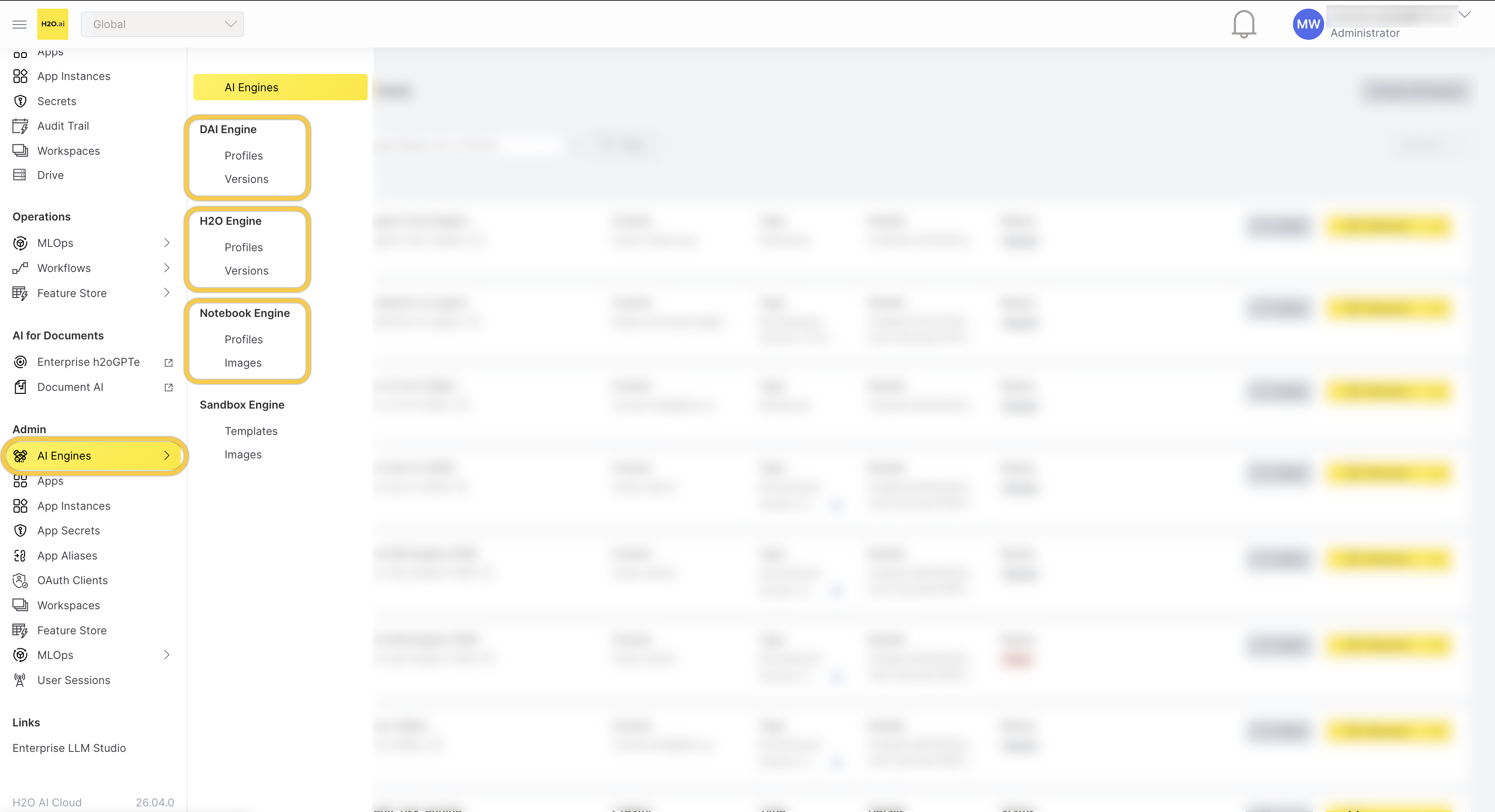
For step-by-step instructions on creating, editing, and deleting profiles in the UI, see Manage engine profiles.
Profile lifecycle
- Profiles are managed in the global workspace: All profiles live in
workspaces/global, which makes them available across the platform. - Profiles are snapshots at engine startup: When an engine starts or resumes, the platform captures a fresh snapshot of the profile's settings. Changes do not affect actively running engines.
- Profiles can be disabled or deleted: Disabling a profile prevents users from creating new engines with it; deleting it is permanent. For details on how profile changes, disabling, and deletion affect paused engines, see Manage engine profiles.
For Python client examples, see the engine-specific profile pages linked in Profile types.
- Submit and view feedback for this page
- Send feedback about AI Engine Manager to cloud-feedback@h2o.ai